
How I organize 20 Claude Code and Codex terminals on Windows
At one point I had 20 terminal windows open across agent sessions. A prompt could sit unanswered behind another window. I built WindowDock to bring the windows I’d already started into one workspace.
Collect the terminals you already opened
Open WindowDock while your terminals are running. Use Add windows to select specific terminals, or Collect windows to gather visible application windows. When the tab fills, WindowDock can put the remaining windows in another tab.
If you’ve also got a browser or editor open, use Add windows for the first pass. After that, capture rules can route matching windows and exclude apps you want to leave on the desktop.
Use one tab per project
Name tabs by project and keep related sessions together. A grid makes it easy to see which terminals are still producing output. Double-click a panel header when you need to read a long diff or type a reply. Use Ctrl + Alt + K to search for a window by name.
When you need the desktop, minimize WindowDock. The terminals keep running. Closing WindowDock returns its windows to the desktop.
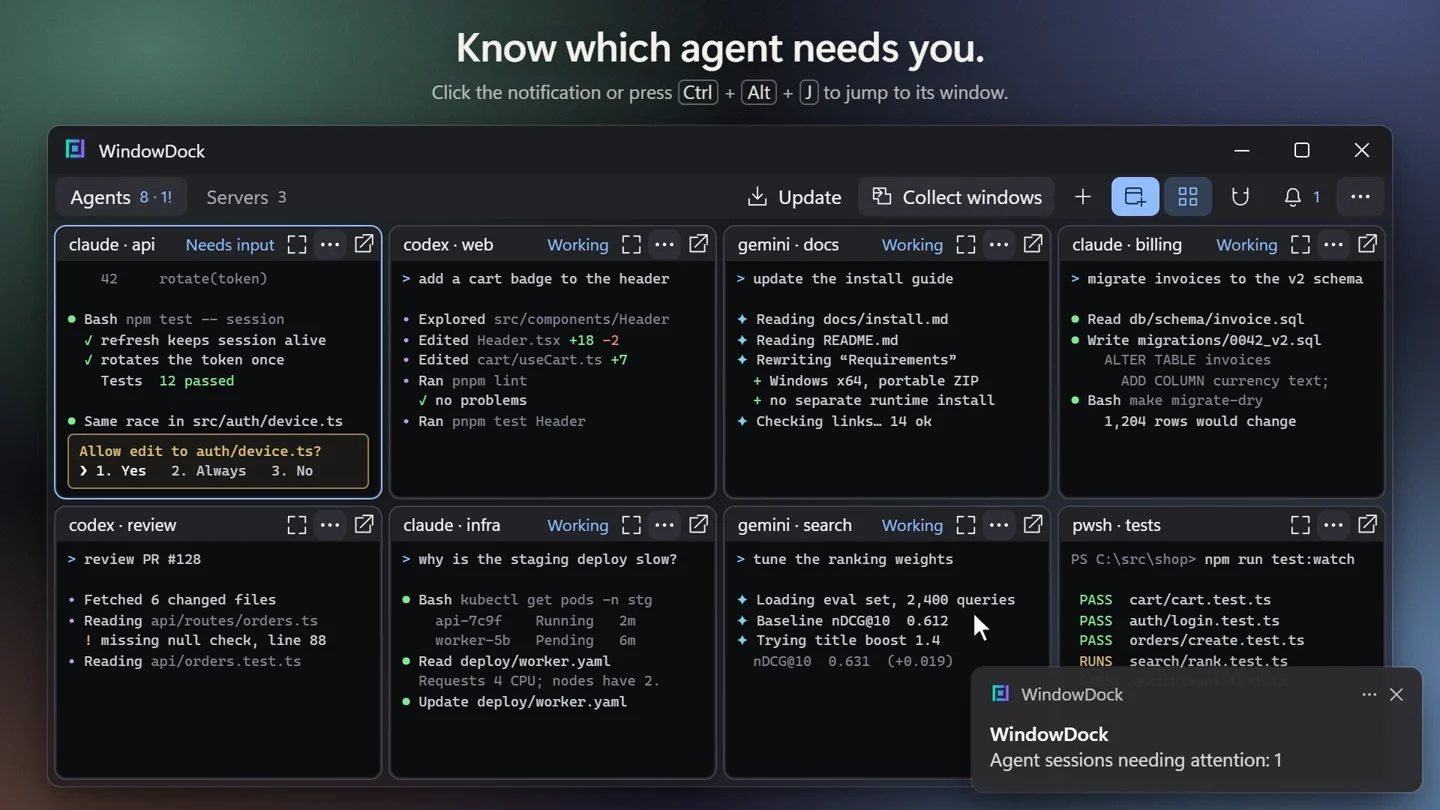
Find the agent that needs a reply
In Agent integrations, choose a project folder and preview the proposed hook changes. Set up your provider, restart its CLI session when ready, and complete its hook approval. The bell lists sessions that need attention. Enable Windows notifications if you want prompts while you’re in another app. Clicking a notification opens the source panel.
If agents share a single Windows Terminal window, assign the hook session to its named terminal tab and pane. The integration guide walks through that setup and its permissions. Read the agent integration guide.
Start with your next two sessions
Choose the Windows x64 portable ZIP on GitHub Releases. Extract it and add a pair of terminals you already have open. If a window behaves differently in your setup, share its app name and Windows version in the project discussion.